

Prerequisites
Before you begin, please ensure:-
Cherry Studio is installed
Download and install the version suitable for your operating system from Cherry Studio Official Website -
ElkAPI API Key obtained
Log in to ElkAPI Console to get your API key (starts withsk-)
Tip: If you don’t have an ElkAPI account yet, please register at ElkAPI and obtain an API key first.
Step 1: Open Cherry Studio Settings
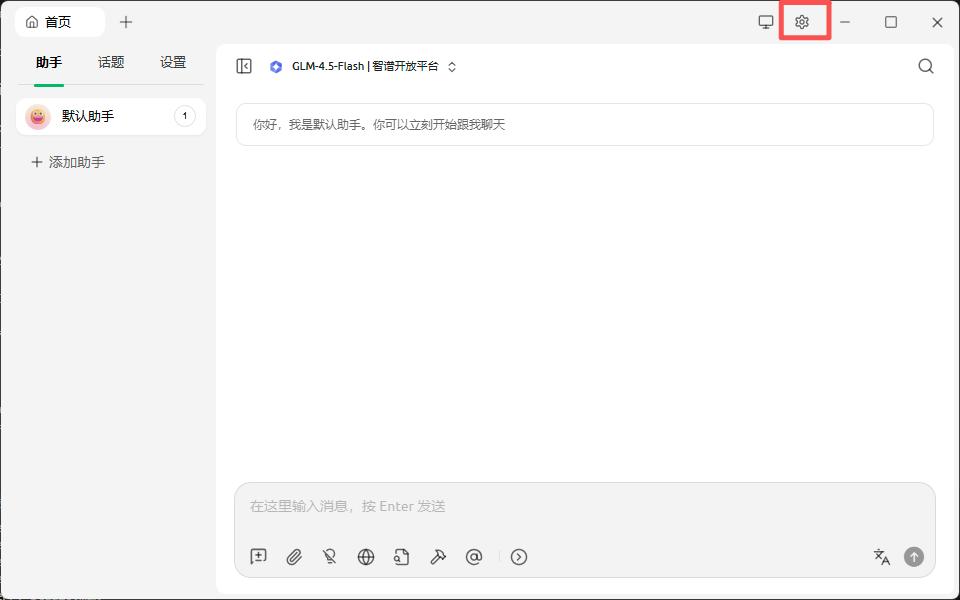
After launching Cherry Studio, navigate to the settings page:- Click the ⚙️ Settings icon (gear icon) in the top right corner
- Or use keyboard shortcuts:
- Windows/Linux:
Ctrl + , - macOS:
Cmd + ,
- Windows/Linux:
Step 2: Add ElkAPI Model Platform
2.1 Access Model Service Management
In the settings page:- Find the Model Service option in the left menu
- Click to enter model service management page

2.2 Add ElkAPI Provider
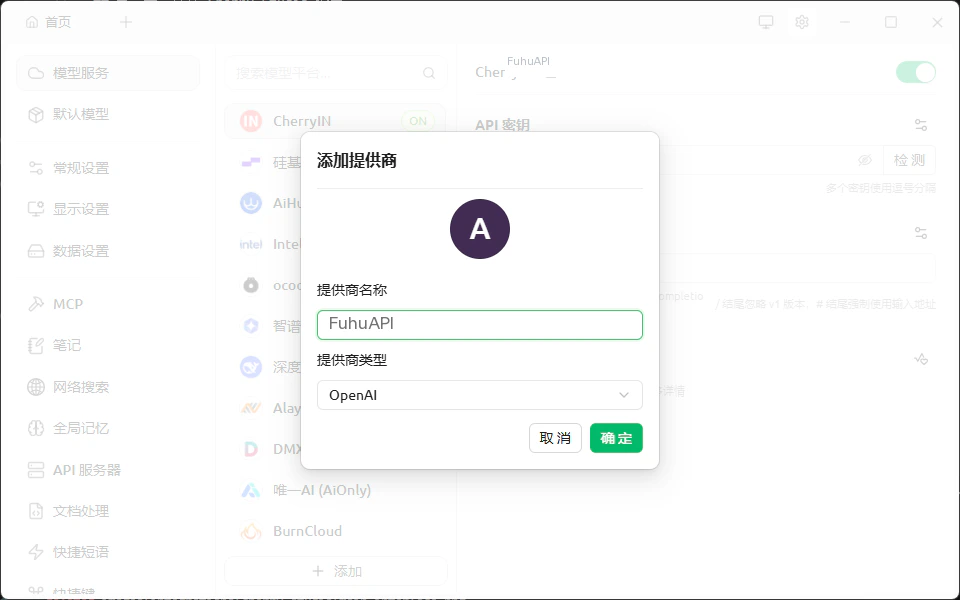
- At the bottom of the model service page, click the ”+ Add” button
-
In the “Add Provider” dialog, fill in:
- Provider Name:
ElkAPI(customizable) - Provider Type: Select
OpenAI
- Provider Name:
- Click the “Confirm” button
2.3 Configure ElkAPI API Information
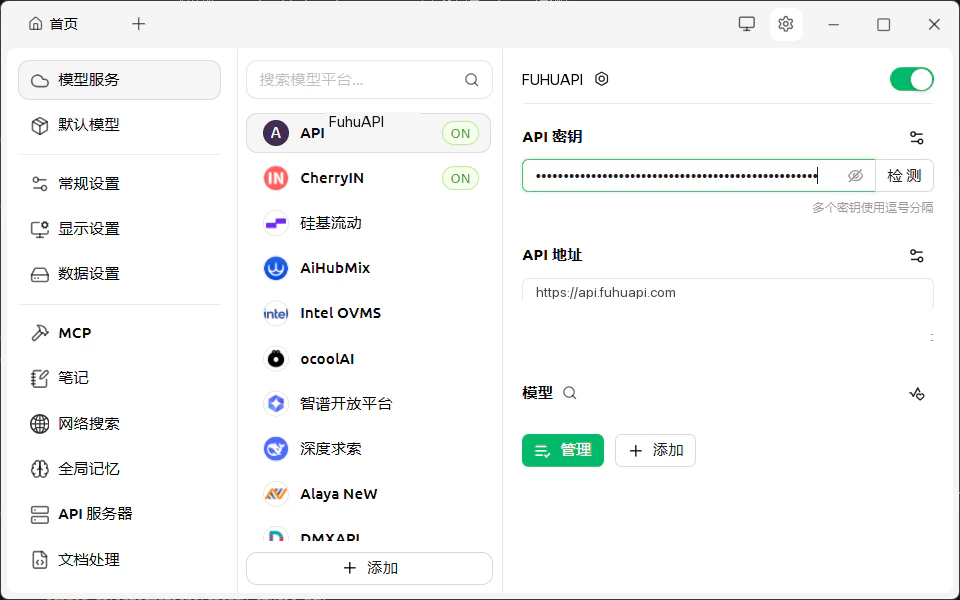
After adding the provider, fill in the API information in the right configuration area:Important:
- API URL must be
https://api.elkapi.com(do not include/v1or other paths) - API Key must be obtained from ElkAPI console and start with
sk- - After filling in, you can click the “Test” button to test the connection
Step 3: Add and Manage Models
3.1 Open Model Management
After configuring the ElkAPI provider:- Ensure the ElkAPI provider switch in the top right is ON (green)
- In the right configuration area, find the “Models” section
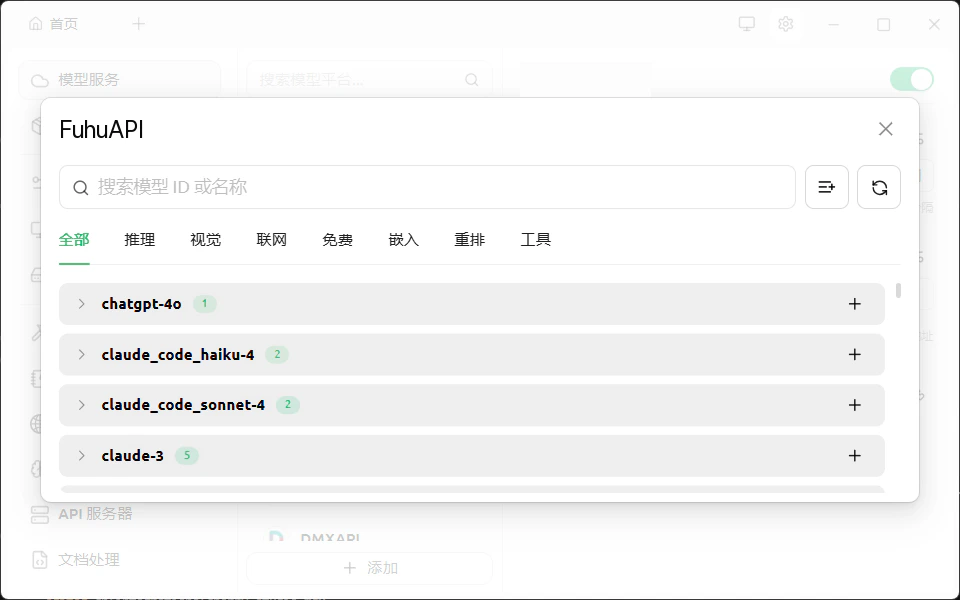
- Click the “Manage” button to open the model selection window
3.2 Add Desired Models
In the model selection window:- Use the search box to find specific models
- Use the category tabs at the top to filter: All, Reasoning, Vision, Web, Free, Embedding, Rerank, Tool
- Find the models you want and click the + button on the right to add:
gpt-5.5/gpt-5.5-pro- OpenAI GPT-5.5 modelgpt-5.4-mini- Faster and more economical versionclaude-sonnet-4-6series - Claude Sonnet 4.6 models (with multiple variants)claude-sonnet-4-6-thinking- Claude Sonnet 4.6 Thinkingclaude-sonnet-4-6- Claude Sonnet 4.6gemini-3.1-flash-lite-preview- Google Gemini 3.1 Flash Lite
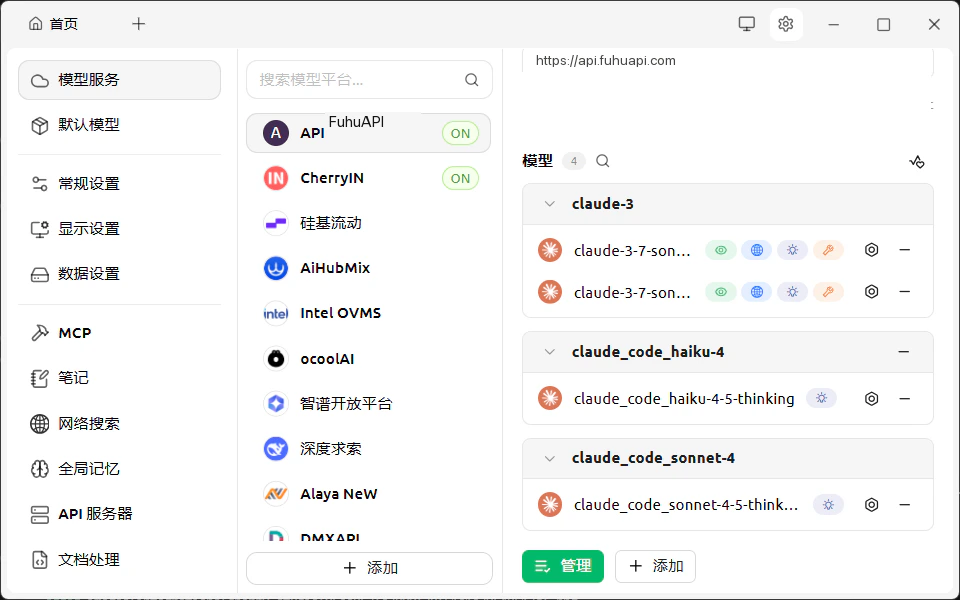
- After adding all desired models, close the model selection window
Step 4: Start Chatting
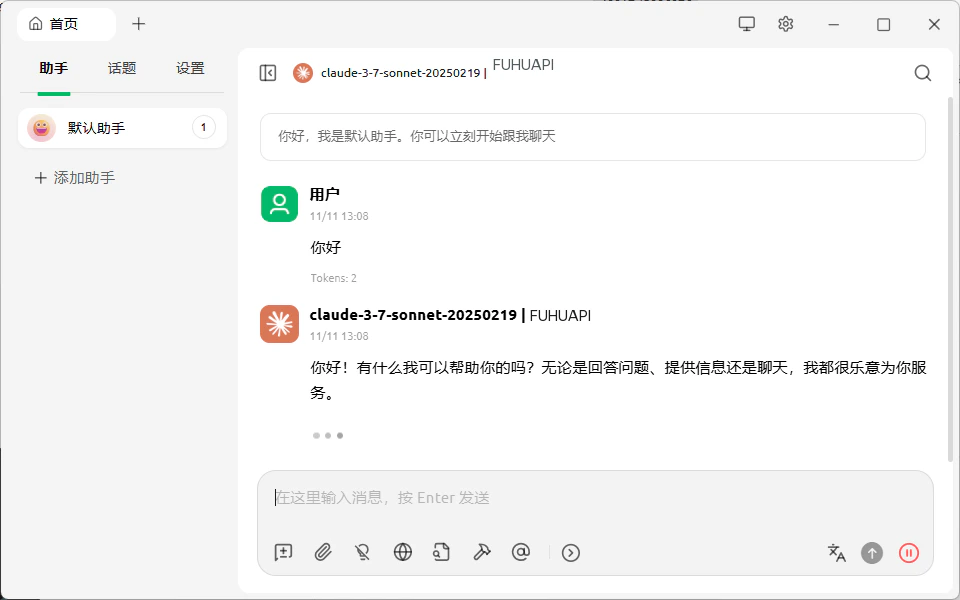
After configuration, you can start using it:- Return to the main interface, click the ”+” at the top or select an existing chat
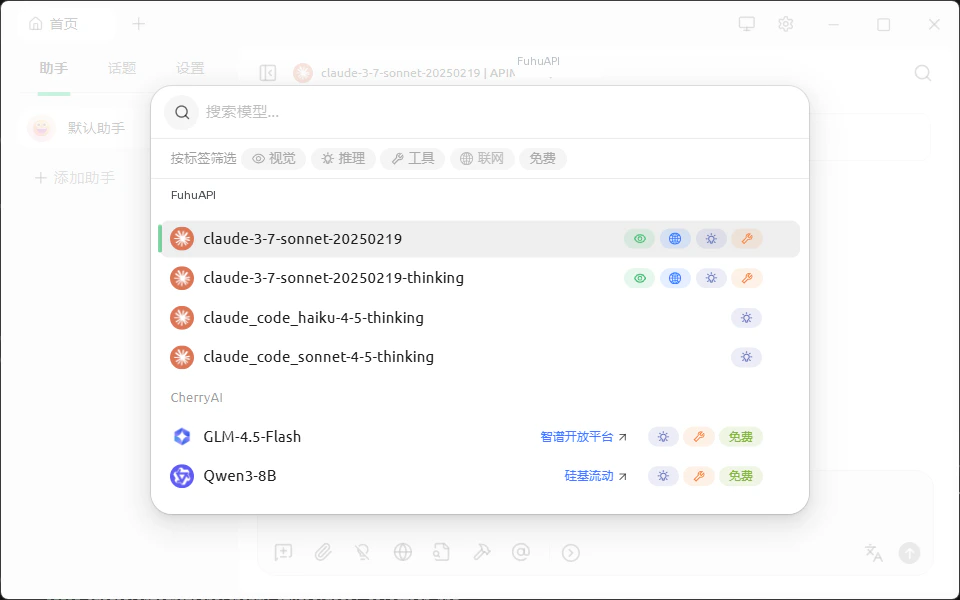
- At the top of the chat page, click the model selector
- Select a model under the ElkAPI provider
- Start chatting with AI!
FAQ
Q1: Cannot connect to ElkAPI service?
Solution:-
Check Base URL:
- Ensure Base URL is
https://api.elkapi.com - Do not add
/v1suffix
- Ensure Base URL is
-
Verify API Key:
- Confirm API Key is correct and starts with
sk- - Check if the key is valid in ElkAPI Console
- Confirm API Key is correct and starts with
-
Check Network Connection:
- Ensure you can access
https://api.elkapi.com - You may need to configure a proxy if in China
- Ensure you can access
Q2: Model list is empty or cannot refresh?
Solution:-
Manually Add Models:
- If auto-refresh fails, you can manually add common models
- In model management, manually enter model names (e.g.,
gpt-5.5)
-
Check API Permissions:
- Confirm your API Key has permission to access the model list
- Contact ElkAPI support to check account status
Q3: Error messages during conversation?
Common errors and solutions:Q4: How to view API usage and costs?
Log in to ElkAPI Console to view:- 📊 API call statistics
- 💰 Cost details
- 📈 Usage trend charts
Features
Using Cherry Studio + ElkAPI, you can:- 💬 Multi-model Conversations - Use different AI models in the same interface
- 🖼️ Image Understanding - Multi-modal conversations with image input support
- 📝 Context Management - Intelligent management of conversation history and context
- 🎨 Custom Prompts - Create and manage prompt templates
- 📊 Export Conversations - Export conversation records to Markdown and other formats
- 🔄 Model Comparison - Use multiple models simultaneously and compare outputs
Support & Help
If you encounter any issues:- 📚 ElkAPI Documentation
- 📧 Technical Support: support@elkapi.com
Start Using ElkAPI
Register for ElkAPI now, get your API key, and start your AI journey!