> ## Documentation Index
> Fetch the complete documentation index at: https://docs.elkapi.com/llms.txt
> Use this file to discover all available pages before exploring further.
# OpenClaw Manager — Telegram Channel Setup
> Step-by-step guide on creating and configuring a Telegram bot in OpenClaw Manager, including BotFather bot creation, credential setup, and pairing code binding.
## Introduction
This tutorial guides you through creating and configuring a Telegram bot in OpenClaw Manager. Once complete, your Telegram Bot will be powered by ElkAPI's AI models for intelligent conversations.
**Prerequisites:** Please ensure you have completed the [OpenClaw Manager deployment](/en/integrations/platform/openclaw-manager) and the Manager is running with the management UI accessible.
## Step 1: Create a Bot on Telegram
1. Open Telegram, search for [@BotFather](https://t.me/BotFather) and start a conversation
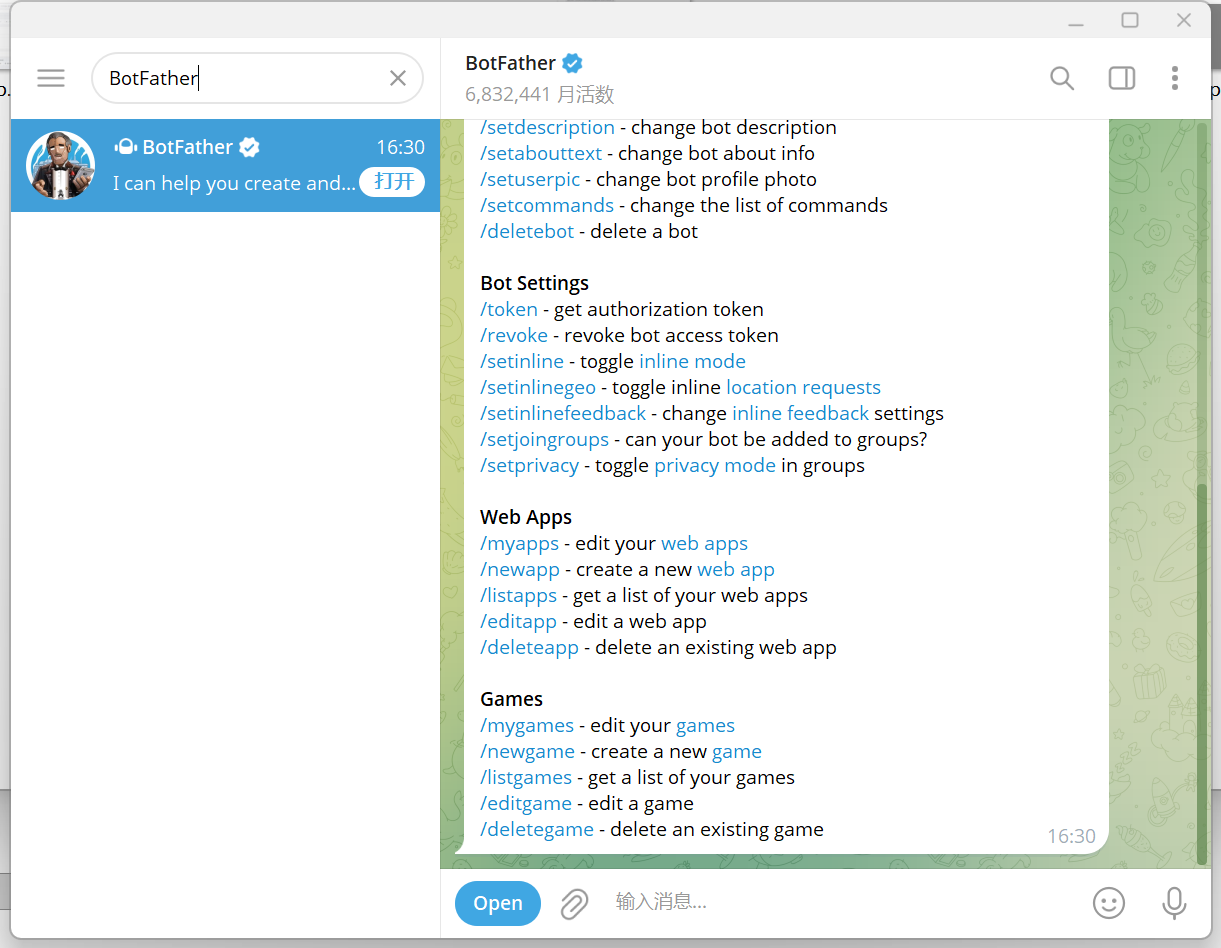 2. Send the `/newbot` command
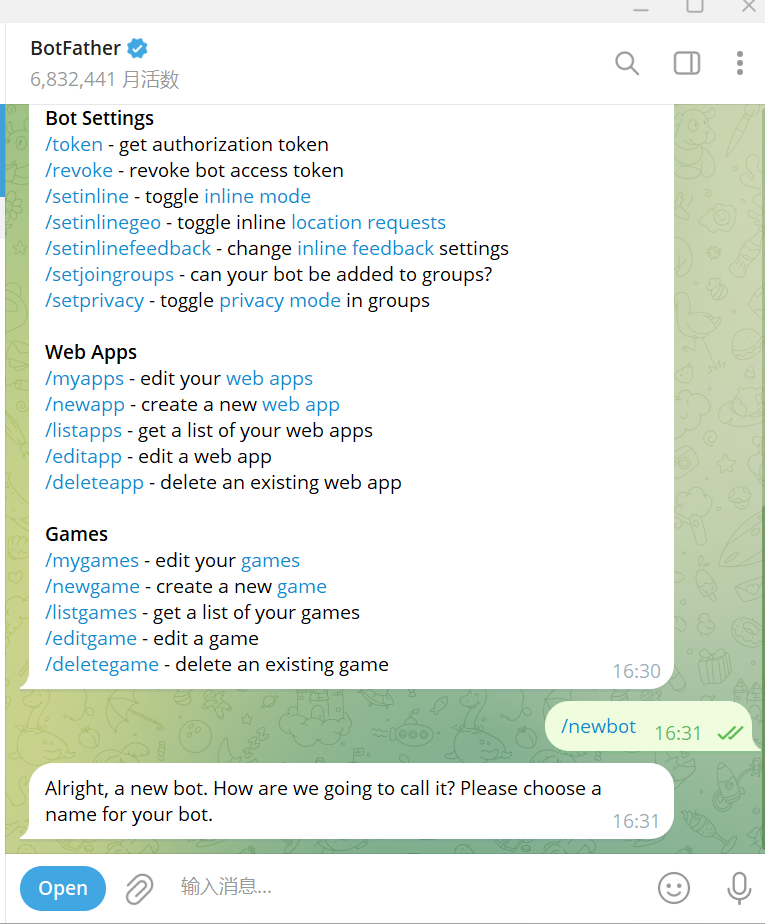 *Send /newbot to start creating a bot*
3. Enter your bot's **display name** as prompted (e.g. `My AI Bot`)
*Send /newbot to start creating a bot*
3. Enter your bot's **display name** as prompted (e.g. `My AI Bot`)
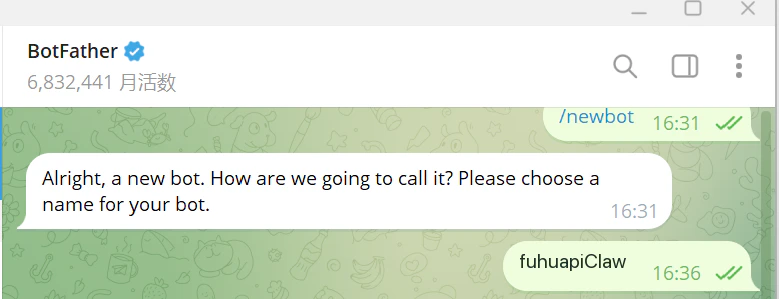 *Enter the bot's display name*
4. Enter the bot's **username** (must end with `bot`, e.g. `my_ai_chatbot`)
*Enter the bot's display name*
4. Enter the bot's **username** (must end with `bot`, e.g. `my_ai_chatbot`)
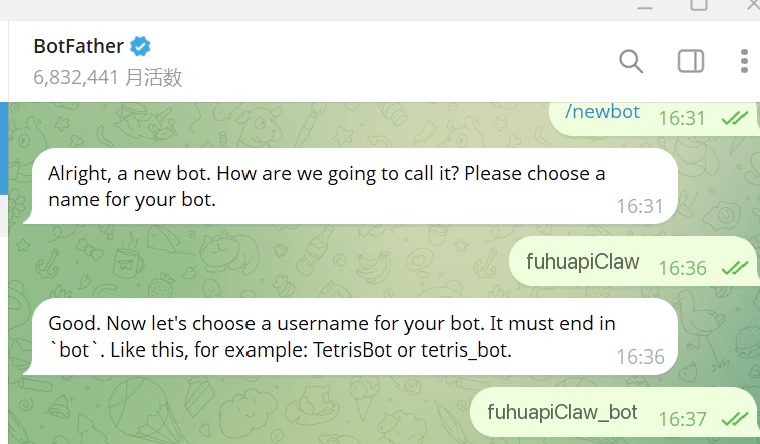 *Enter the bot's username (must end with bot)*
5. BotFather will return a **Bot Token** (format: `123456:ABC-DEF1234ghIkl-zyx57W2v1u123ew11`), copy and save it
*Enter the bot's username (must end with bot)*
5. BotFather will return a **Bot Token** (format: `123456:ABC-DEF1234ghIkl-zyx57W2v1u123ew11`), copy and save it
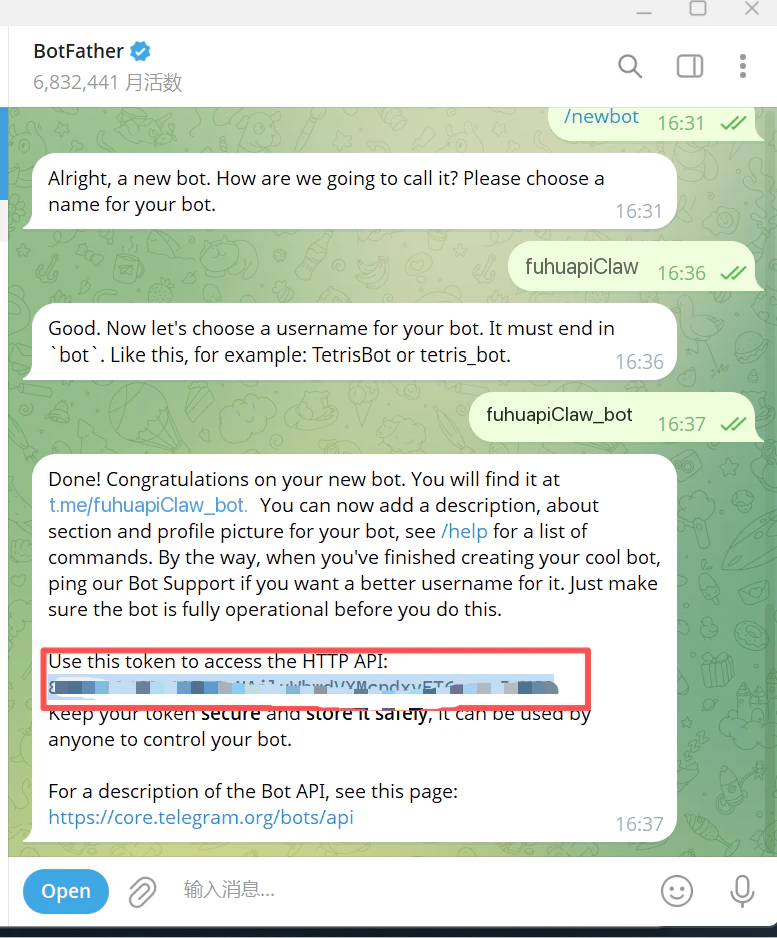 *Bot Token returned by BotFather*
**Keep your Bot Token secure** and do not share it. If the token is compromised, use the `/revoke` command in BotFather to regenerate it.
## Step 2: Create Instance in Manager
1. Open the OpenClaw Manager UI (`http://127.0.0.1:51942`)
2. Click **+ New Instance**
*Bot Token returned by BotFather*
**Keep your Bot Token secure** and do not share it. If the token is compromised, use the `/revoke` command in BotFather to regenerate it.
## Step 2: Create Instance in Manager
1. Open the OpenClaw Manager UI (`http://127.0.0.1:51942`)
2. Click **+ New Instance**
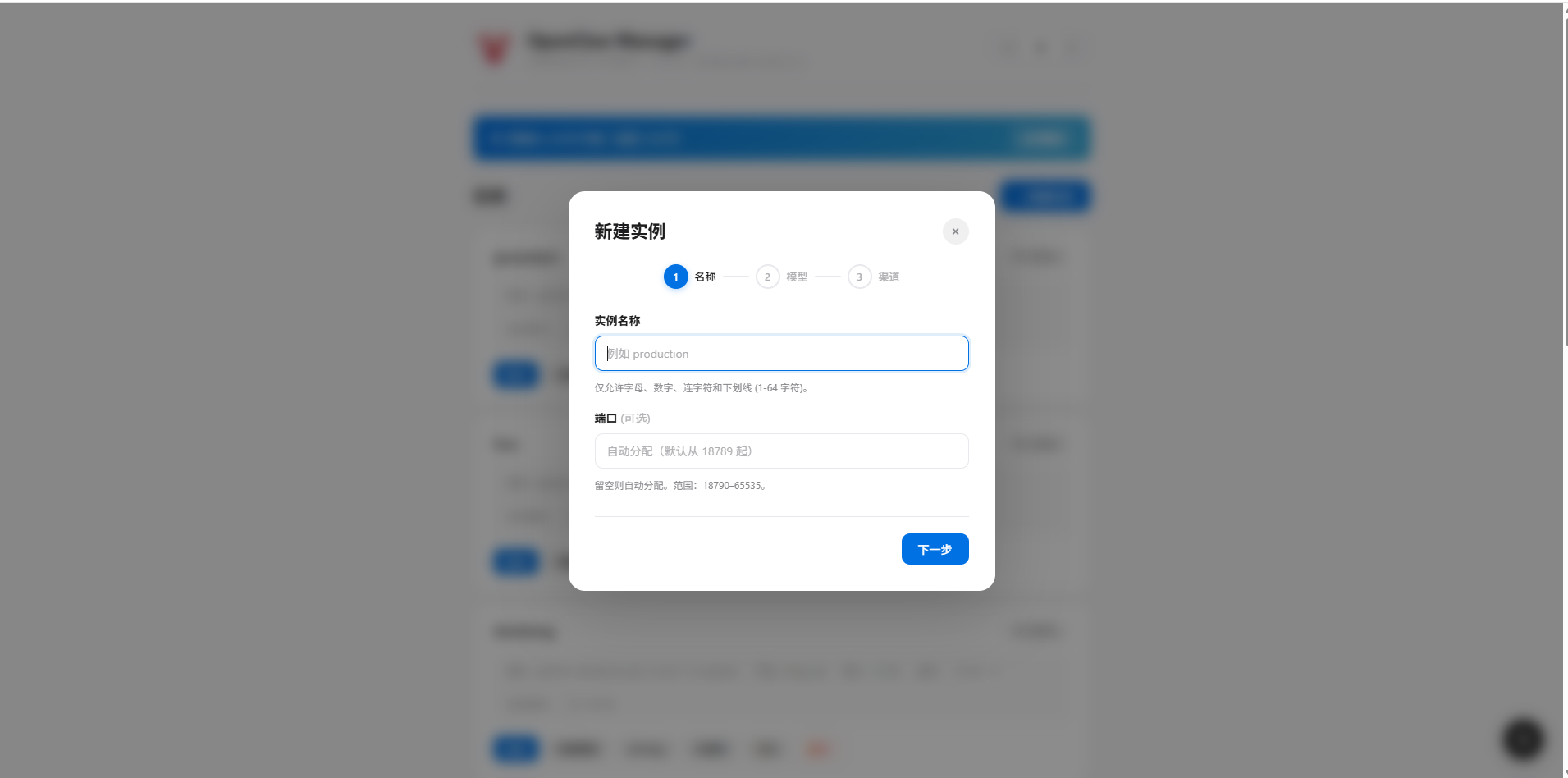 3. **Enter instance name** — e.g. `my-telegram-bot` (letters, numbers, underscores, hyphens only)
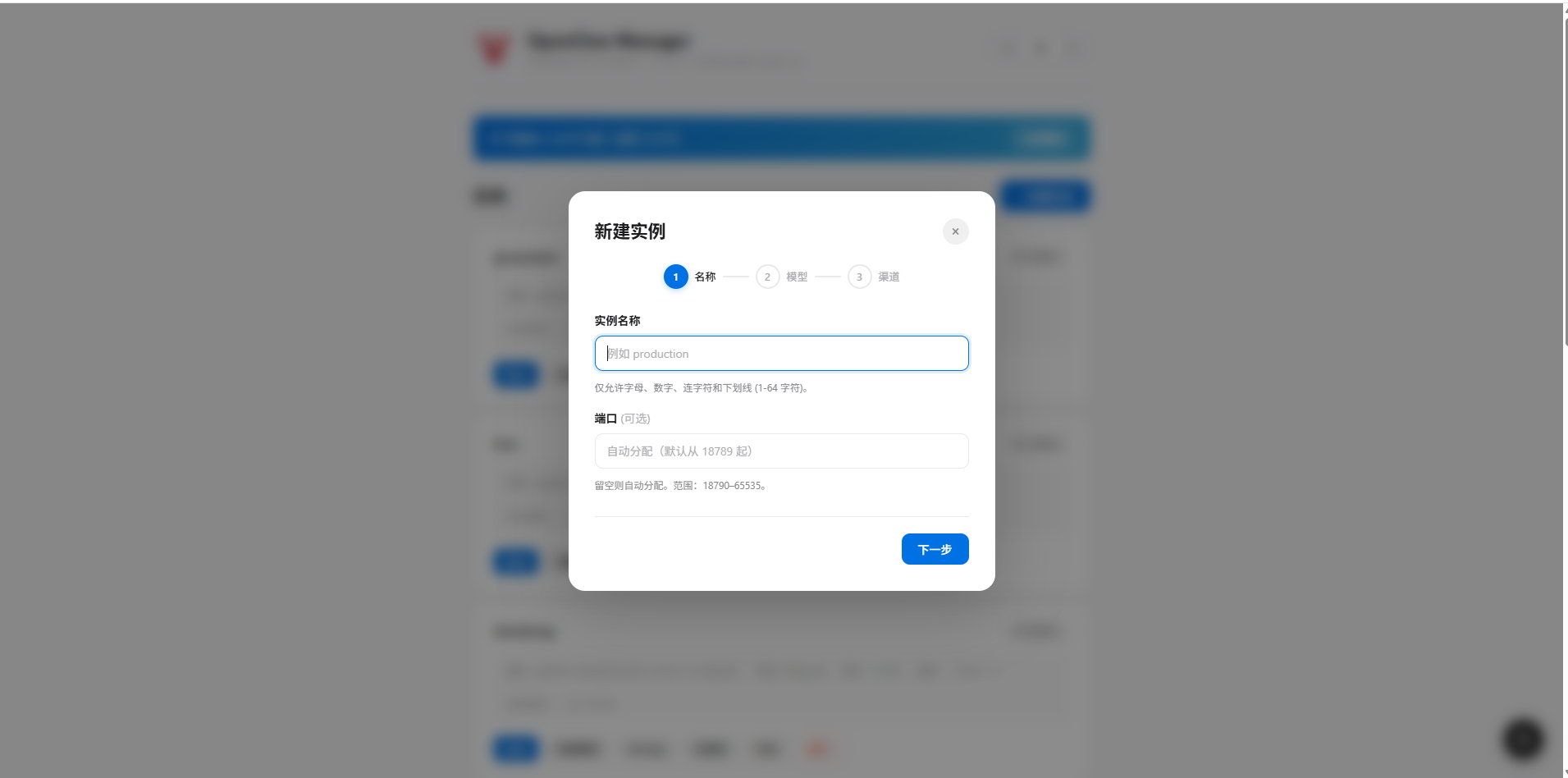 4. **Select AI model** — Choose the model you want to use
 5. **Enter ElkAPI API Key** — Enter your API key starting with `sk-`
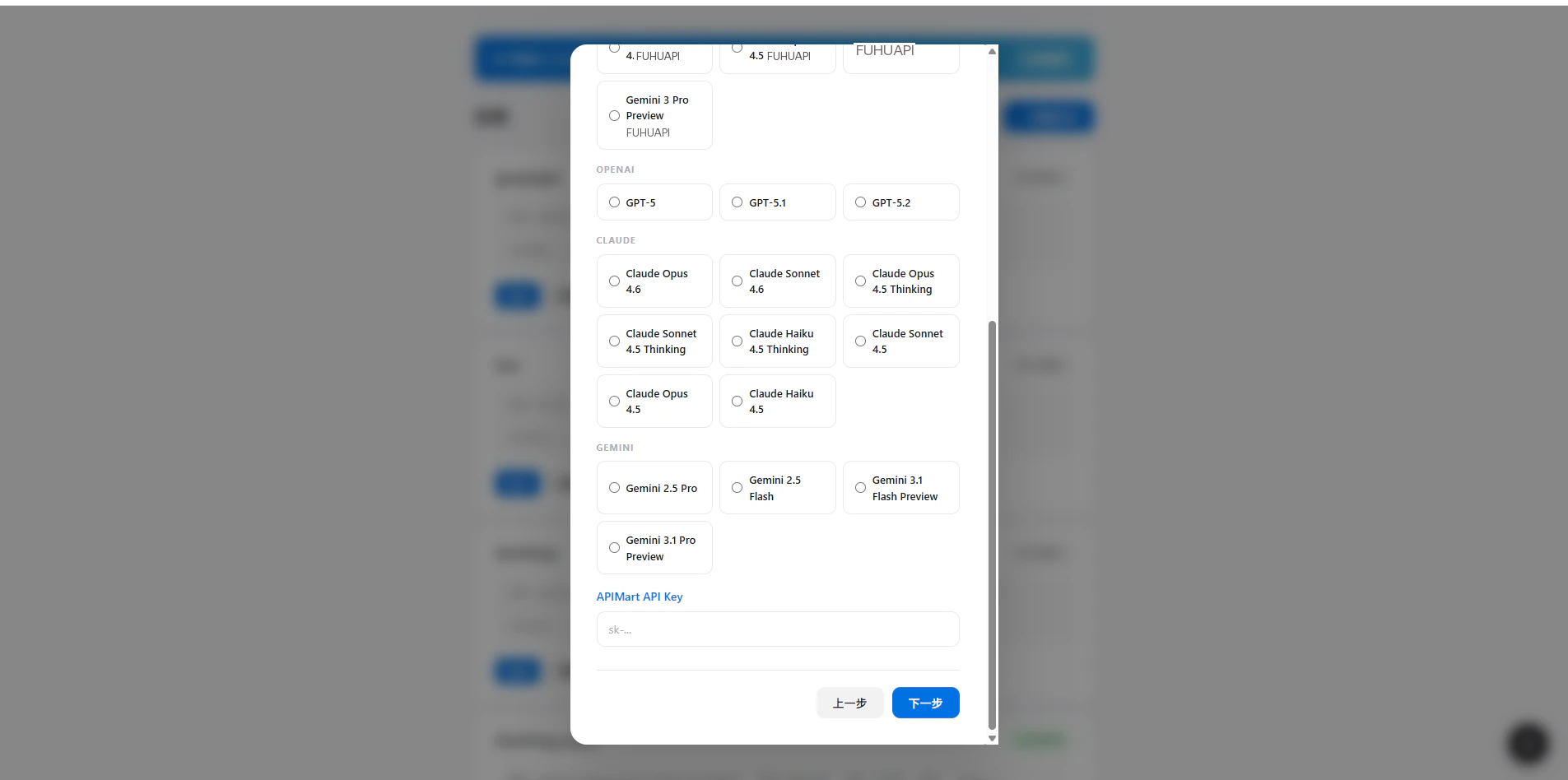 6. **Select channel** — Choose **Telegram**
7. **Paste Bot Token** — Paste the Bot Token obtained in Step 1
6. **Select channel** — Choose **Telegram**
7. **Paste Bot Token** — Paste the Bot Token obtained in Step 1
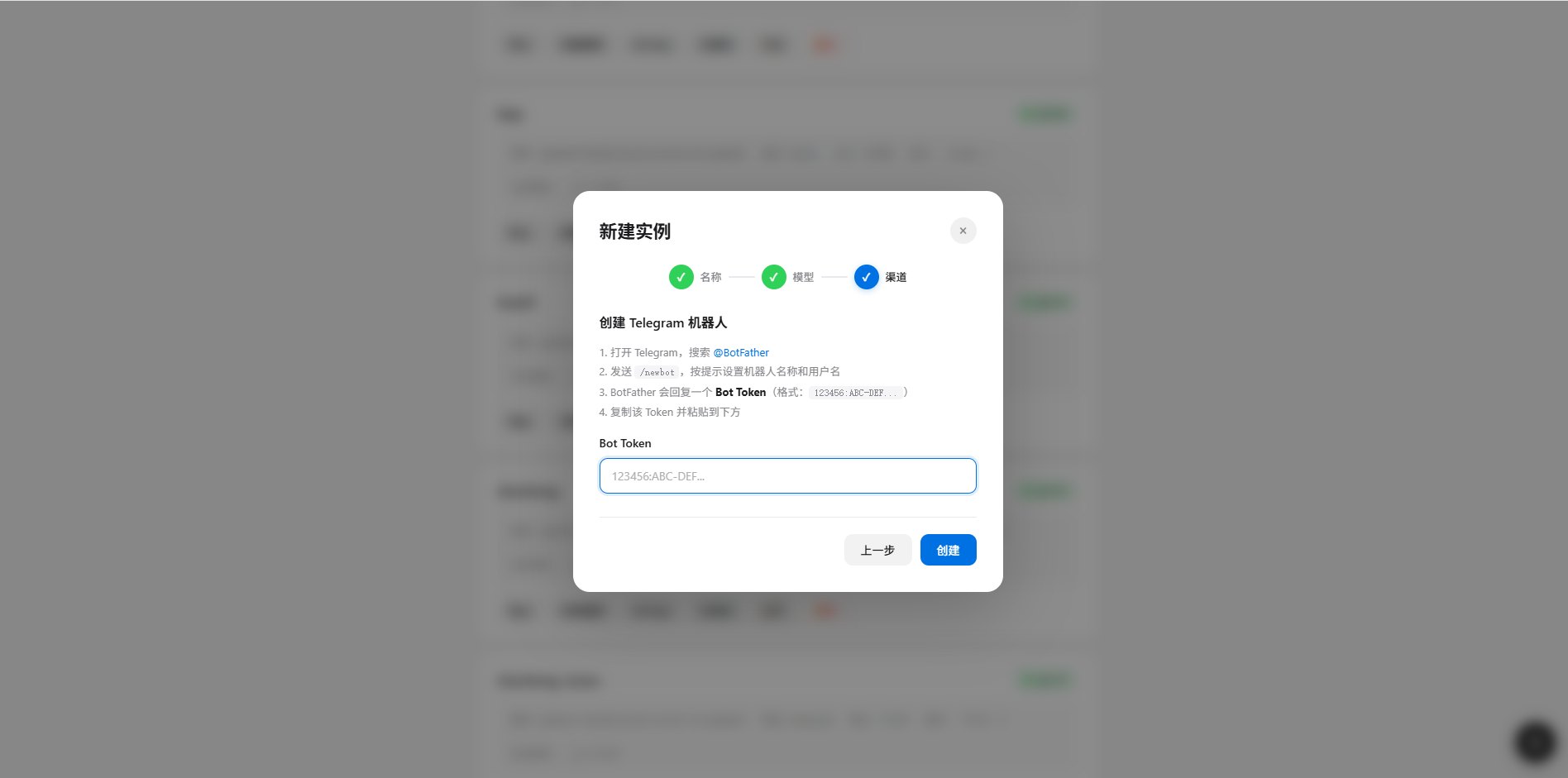 *Paste Telegram Bot Token*
8. Click **Create** to complete instance creation
## Step 3: Pairing Code Binding
After the instance is created and started, complete user authorization via pairing code:
1. Search for your bot's username in Telegram
2. Send any message (e.g. "Hello")
3. The bot will reply with an **8-digit pairing code** (e.g. `DFE62DTD`)
*Paste Telegram Bot Token*
8. Click **Create** to complete instance creation
## Step 3: Pairing Code Binding
After the instance is created and started, complete user authorization via pairing code:
1. Search for your bot's username in Telegram
2. Send any message (e.g. "Hello")
3. The bot will reply with an **8-digit pairing code** (e.g. `DFE62DTD`)
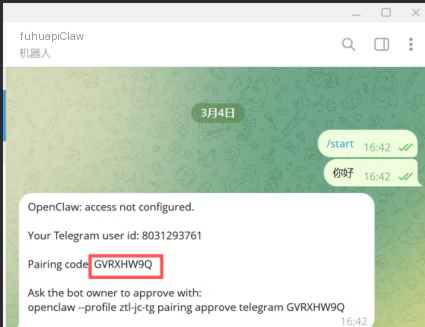 *Pairing code returned by the bot*
4. Return to the Manager's new instance wizard, enter the pairing code in the "**Enter Pairing Code**" step and click "**Approve**"
*Pairing code returned by the bot*
4. Return to the Manager's new instance wizard, enter the pairing code in the "**Enter Pairing Code**" step and click "**Approve**"
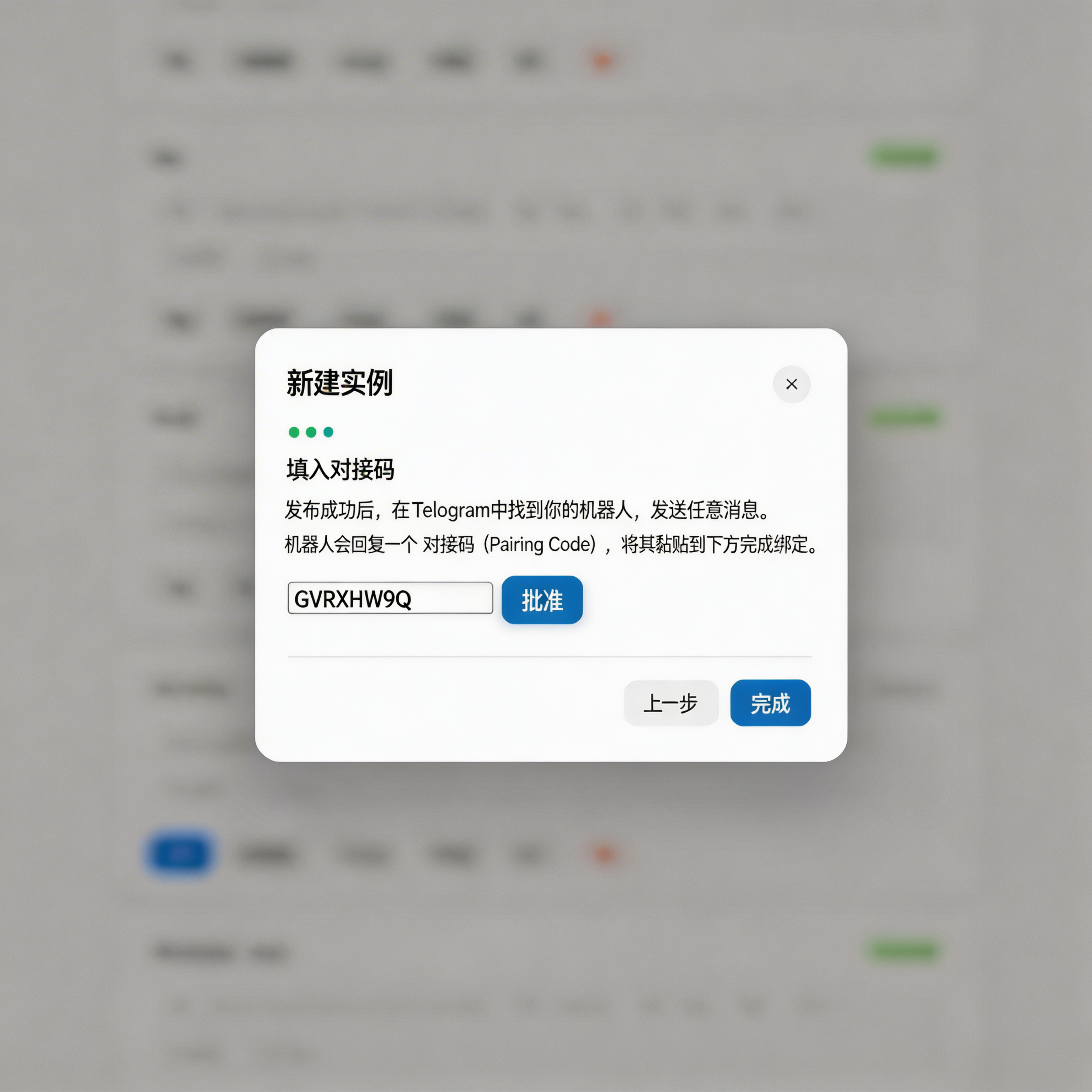 *Enter pairing code and approve in the wizard*
5. After the code is approved, click "**Done**"
*Enter pairing code and approve in the wizard*
5. After the code is approved, click "**Done**"
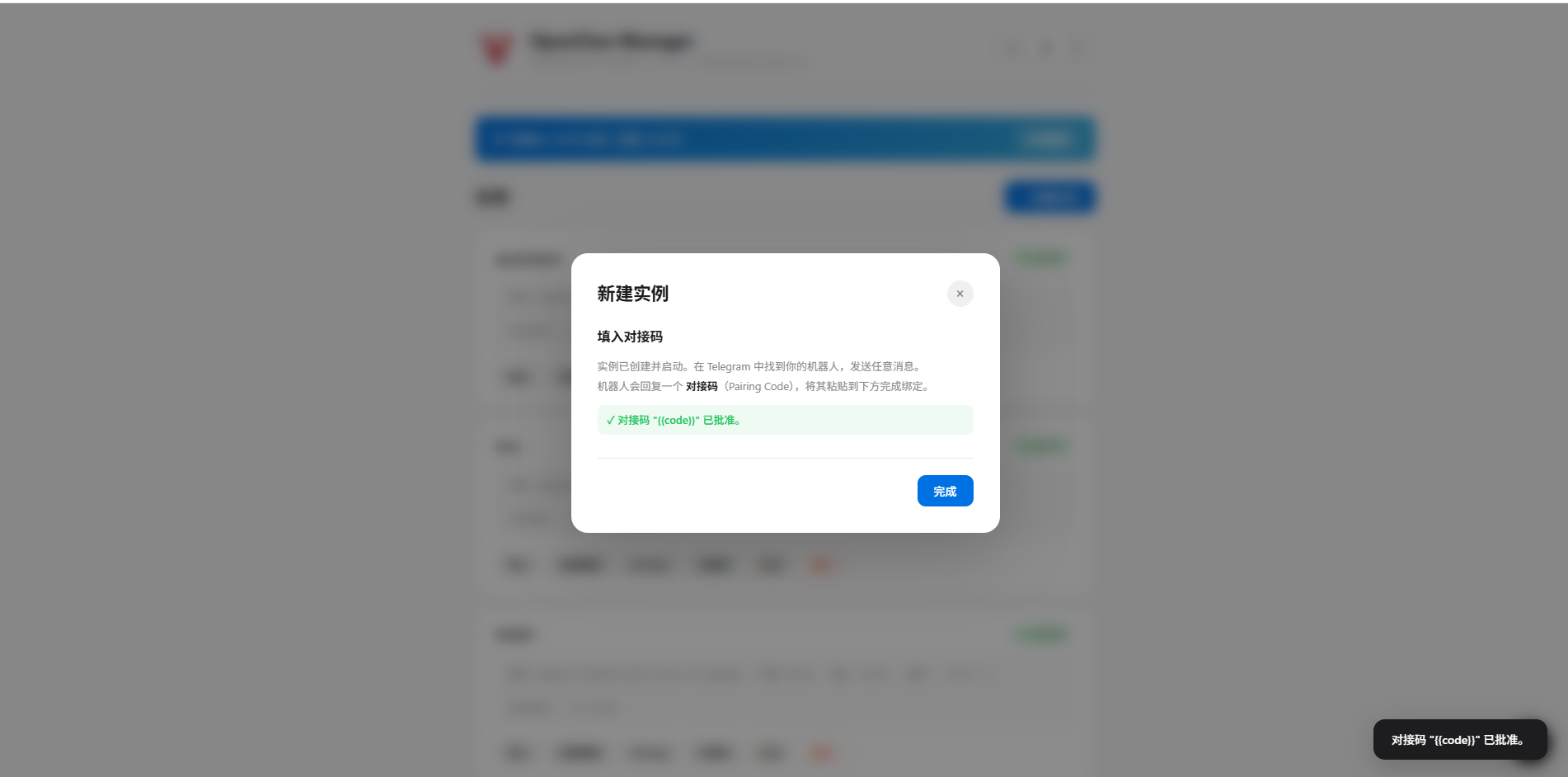 *Pairing code approved, click Done*
6. Return to Telegram, send another message, and the bot will respond with AI-generated content
*Pairing code approved, click Done*
6. Return to Telegram, send another message, and the bot will respond with AI-generated content
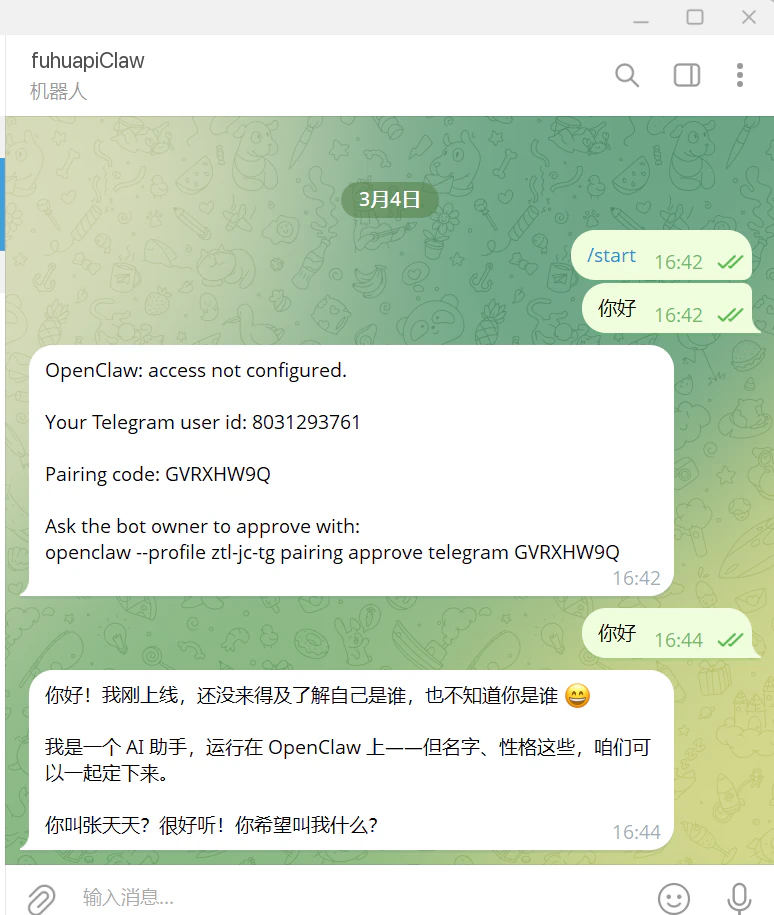 *Chat with the AI bot after successful binding*
**Tip:** Pairing codes are stored in Gateway memory and expire after Gateway restart. If a code expires, simply have the user send a new message to get a fresh code.
## FAQ
### Q1: Bot created successfully but not responding?
**Solutions:**
1. Confirm the instance status is "**Running**" in Manager
2. Confirm Bot Token is entered correctly
3. Check Gateway logs: `~/.openclaw-/logs/gateway.log`
### Q2: Pairing code approval failed?
**Solutions:**
* Confirm Gateway is running
* Pairing codes are case-sensitive, double check carefully
* Codes expire after Gateway restart, have the user send a new message
***
View the complete guide for Manager installation, deployment and instance management
*Chat with the AI bot after successful binding*
**Tip:** Pairing codes are stored in Gateway memory and expire after Gateway restart. If a code expires, simply have the user send a new message to get a fresh code.
## FAQ
### Q1: Bot created successfully but not responding?
**Solutions:**
1. Confirm the instance status is "**Running**" in Manager
2. Confirm Bot Token is entered correctly
3. Check Gateway logs: `~/.openclaw-/logs/gateway.log`
### Q2: Pairing code approval failed?
**Solutions:**
* Confirm Gateway is running
* Pairing codes are case-sensitive, double check carefully
* Codes expire after Gateway restart, have the user send a new message
***
View the complete guide for Manager installation, deployment and instance management